|
Zeiss IOLMaster Customer Service: 1-877-486-7473 ext.
4030
IOLMaster — Lens Constants.
 Follow
this link for specific: Optical Biometry Lens Constants Follow
this link for specific: Optical Biometry Lens Constants
Optimization of Intraocular
Lens Constants
I key, or the button pictured above activates
the IOL Calculation mode.
Selecting Lens Data
The lens data available in the database may be optimized by the
following procedure.
-
In the Options menu, open User Database. Select the respective
eye surgeon and confirm your choice with OK.
-
Choose a lens. The input mask contains constants calculated from
"Manufacturer's A Constant" or previously optimized constants.
-
Click on the OPTIMIZE button.

-
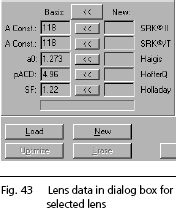
The dialog box for the selected
lens will appear and the lens constants can be seen in the Basis column
(Fig. 43, below).
Loading Existing Data Records

-
Click on the LOAD button to load the data records of all patients
available for optimization.
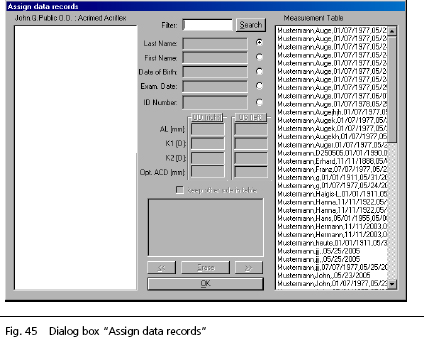
Special filter functions allow fast selection of patient data. The right
column shows the list of all patients available for optimization (Fig 45, above).
- Click on the desired patient data record in this list to select it.
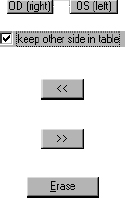
- Select the eye (OD or OS) to be used for the optimization calculation.
The fields below show the measurement data of the IOLMaster.
- If you wish the data of the other eye to be kept in the data table for
further optimization, check the box marked: keep other side in table.
- Click on the << button to load the selected data record
in the left-hand table. These data records are intended for IOL optimization
- Transfer at least 11 data records into the left-hand table in this way.
- Click on the >> button to return the selected data record to the
right-hand table if it is not to be used for optimization, but should
be kept for possible later use.
- Click on the Erase button to irrevocably delete the data record
to the right or left.
- When all the desired data records are loaded into the left-hand table,
press OK to return to the optimization box (Fig. 44, below).
|
|
 |
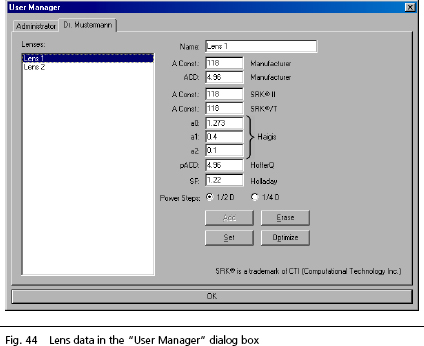
- Further patient records can be added to the left-hand list for
subsequent additional optimizations.
 |
|
Note
The data contained in the database (right- and left-hand table)
will not be deleted automatically and are thus available for later
additional optimizations. A backup should be made at regular
intervals by transferring data to an office management system or
a printout. |
Entering New Data Records
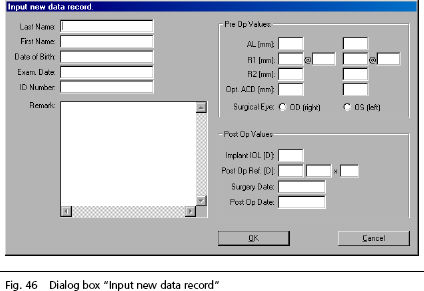
- To enter data records which do not exist on the IOLMaster result
table, click on the New button.

This will bring up an input mask for creating a new data record to be
optimized This data record may be used for optimization only, not for
IOL calculation. Nor does it appear in the patient database.
 |
WARNING:
Only data obtained from the IOLMaster may be entered
in the fields for pre-operative data. When entering the refractive
power, make sure that the same keratometer refractive index is set on
the IOLMaster as is on the keratometer used for the measurement.
The entry of data taken from ultrasound devices will yield
incorrect results.
|
|
WARNING:
The data records of patients who have undergone refractive surgery of
the cornea should be excluded from optimization.
|
- Complete the entries in the input mask.
|
|
Note
The entry of the Exam date is essential!
Entry of ACD, Surgery Date and Post-Op Date is optional. |
|
|
Note
There should be a period of at least 8 weeks between the surgery
and post-op dates. However, this period will not be checked! |
- If you wish to reject the entries made and return to the optimization
calculation mask, click on the CANCEL button.
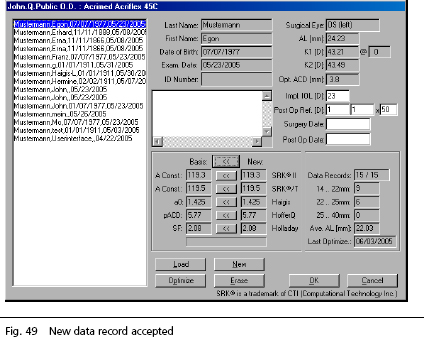
- To confirm the new data record and add it to the list of data records
to be used for optimization, click on the OK button. The new data
record is shown in the Data Records field. It is displayed in the list
of data records.
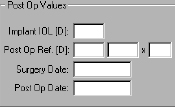
Entering post-operative data
- Highlight the patient data record by clicking on it.
- In the IOL (D) box, enter the power of the implanted IOL.
- In the Post Op Ref box, type in the post-operative refraction.
- The entry of Surgery Date and Post-Op Date is optional. When
entered, however, the data will be checked for plausibility.
|
|
 |
|
|
Note
There should be a period of at least 8 weeks between the surgery
and post-op dates. (This period, however, will not be checked!) |
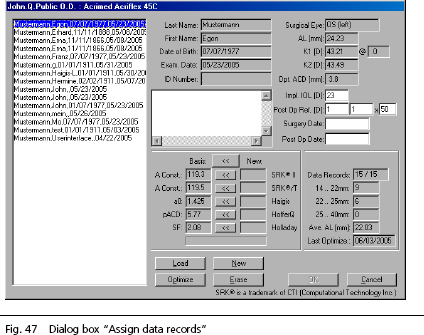
Once all IOL and post-op data has been entered, the requirements for
the optimization calculation have been met.
- Patient data records appearing on a white background contain all
the data required for optimization
|
WARNING:
If a patient data record is highlighted in red, the
IOL and/or post-op ref data has NOT been entered,
or a measured value (AL or KER) is missing. |
- If a patient data record is highlighted in yellow, no ACD values exist
as yet for this data record, and the a0 (Haigis formula) is not optimized with
these data records.
|
|
Note
Only the a0 can be optimized with the IOLMaster software for the
Haigis formula. For the optimization of a0, a1 and a2 (more than
200 data records required) please send this clinical data to Carl
Zeiss Meditec. |
Starting Optimization
- Start the optimization calculation by clicking on the Optimize
button. Depending on the number of data records to be processed,
the computing process may take some seconds.
|
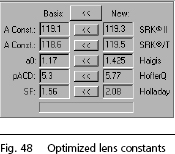
The optimized lens constants will now be displayed in the New
column.
|
|
Note
Data records with an IOL power of 0 D will not be included in the
optimization process. |
The optimization calculation supplies lens constants for every patient's
data record, based of the measured values
and results of surgery.
|
|
|
The mean value (sum of all lens constants
divided by the number of patients) and standard deviation are then
calculated. Lens constants that are more than double the standard
deviation are excluded from the optimization.
If less than 11 data records exist for optimization or data records are
rejected (0 D), - - - will appear in the New column. In
this case the optimization has failed. Repeat the optimization process
with a larger number of data records, or perform several optimizations for
various groups of eyes (e.g. short, normal, and long eyes). This procedure
also ensures a higher degree of accuracy in IOL power calculation.
The resulting mean value will be displayed as an optimized constant. To
obtain optimum constants, patients with pre-, intra- or postoperative
complications which could affect the refraction state should be
excluded.
|
|
Note
The displayed a0 value does not take into account the data
records highlighted in yellow! |
- To reject the last optimization run, click on CANCEL. In this case, the
optimized constants will not be saved to the lens data base, even if a
new data record has been entered.
- Confirm the newly optimized lens constants by clicking on the <<
button to the right of the Basis field. In this case, all optimized
constants will be accepted. If you wish to accept only a specific
constant only (e.g. a0), click on the << button to the right of this
constant.
- Click on OK to return to the User Database. Optimized lens
constants will only be saved to the lens database and for use in
future IOL determination if they are confirmed with OK.
- Click on OK to return to the IOLMaster main module.
For further information:
|




 IOLMaster Checklist (pdf)