|
Zeiss IOLMaster Customer Service: 1-877-486-7473 ext.
4030
IOLMaster — Printout of Results.
The printout of the measured values may be started from ANY
measurement mode: [ALM], [KET], [ACD], [WTW]. The printout will include all
results obtained so far (including those of the other eye, if already
available). It is advisable to start the printout only if all
measured values of both eyes are available.
To start the printout from [ALM], [KET], or [ACD]:
-
Click the printer button
-
P key
To start the printout from [WTW]:
-
Click the printer button or
-
Ctrl + P keys
A summary of measurement information to your printer includes:
-
Listing of all 20 axial
length measurements,
-
Graphic representation of the axial length display
with the highest signal-to-noise ratio,
-
Three selected keratometry values,
-
All of the ACD measurements, and
-
Three White-To-White values with a graphic
representation of
the iris, visual axis and optical axis (if software Option A has been
installed).
Print an individual axial length
display:
-
Select the axial length display you would like to print using
the cursor and
-
Then press the printing shortcut keys CTRL + P.
Print the screen from the White-To-White mode:
-
By pressing the printing shortcut keys CTRL + P.
 Notes: While
printing, do not take further measurements. Notes: While
printing, do not take further measurements.
 |
In ALM mode the printout of the graph with the blue highlighted
reading can be enlarged by pressing <CTR> + <P>.
See Enlarging
the Display of the Graph.
In WTW mode the current reading can be printed out using
<CTR> + <P>.
|
Printer Setup
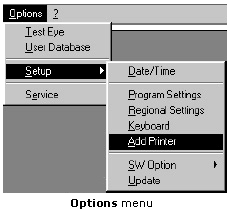
Click on the Options menu > Setup > Add Printer.
This will bring up a dialog box for selecting and configuring the printer.
The options available will depend on the individual printer hardware and software.
Printer Troubleshooting
 |
IMPORTANT: Carefully follow the instructions supplied
with your printer. Connect the printer as described in Setting
Up. |
|
NOTE: The following print formats are supported (upright format
only): A4 (210 x 297 mm), Letter (8.5" x 11.0"), B5 (182 x
257 mm).
|
|
IMPORTANT: It is important that you only use printers recommended by Zeiss. A list of the currently recommended printers is available on the Zeiss web site: |
Carl Zeiss Service
If you encounter any problems during printing, first remove all printer drivers
you do not use:
-
On the Options menu, select Setup > Add Printer.
-
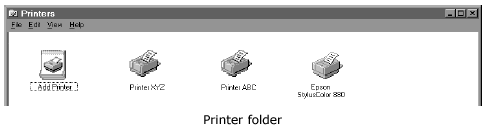
From the printers window select the icon for the connected printer (e.g., Epson Stylus Color 880). Right click to view the drop down menu. Select Set as default.
-
Select the printers not connected (except for the "Add Printer" icon) and press the DEL key. Follow the instructions displayed on the screen.
-
Close the Printer folder again, when the un-install routine is finished.
If the printer troubles should persist, please call your service representative.
In the United States call Carl Zeiss Service Customer
Service, Ophthalmic Division at:
877-486-7473.
|




 IOLMaster Checklist (pdf)