- Keratometer:
If you activate the Adjustment aid, a traffic light will asist the
corneal curvature measurement. When the optimum
measurement position for the patient has been reached, the
traffic light will change from red to yellow to green. If Automatic measurement
is also activated, as soon as the best possible adjustment to the patient has
been reached and the traffic light display turns to green, pressing the knob
on the joystick will automatically trigger three successive measurements.
Following a software update, this function must be calibrated
prior to first use.
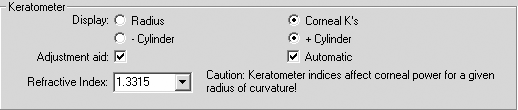
Program settings/Program Keratometer textbox
-
Radius or
Corneal K's for IOL calculation.
- - Cylinder or + Cylinder.
- Refractive index: Entry of equivalent refractive index for
conversion of Corneal Radii into Corneal K's. Enter the refractive
index implemented on your keratometer (refer to respective instruction manual).
- Printing of IOL calculation data: Choose whether you wish to
have the calculated IOL's of both eyes printed on a single page or
only one eye per page. In addition, in this field you may enter the
name of the clinic to appear on the printout of the IOL
calculation.
- Select emmetropy IOL if desired.
|
|
- Program settings/Export (requires Option A plus)
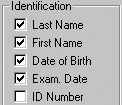
Select Export settings. Select the desired form of file printout
Identification or Readings and the required printout path.
The file name can be freely selected. By convention, the file name
may NOT contain the separators ": / \ ? *". Data will be saved in
(*.csv) text format (separator selectable) and may be read with other
applications (e.g. MS Excel).
|
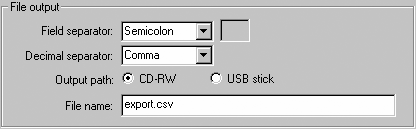
Program settings/Export file output textbox
|
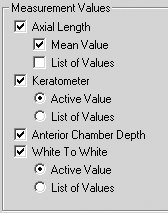
Measurement Values
|
|
- Program settings/User management
- System login: IOLMaster and the patient database can be
protected by means of a password (acc. to HIPAA). For this
purpose, activate the option User login with password. A
password must contain at least one character.
|
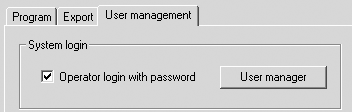
Program settings/User adminstration textbox
 |
IMPORTANT: The option Operator login with password and
screensaver, together with password protection, should not be activated
further users (see below) have been registered and their passwords entered.
|
As soon as you have confirmed the new program settings with OK, a
login dialogue will appear. From now on the IOLMaster can only be
used by logging in with password. The default setting is user Admin
with the password 0000 (4x zero) in the User Database. To change the
password select the option Change password, enter your user name and
old password and confirm with OK.
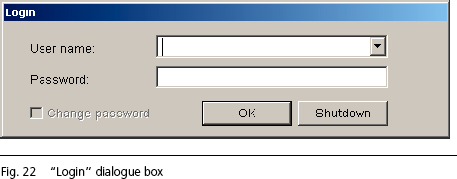
|
|
IMPORTANT:
If you change the Admin password,
you are advised to note
down the new password, e.g. in
the IOLMaster record book. The user
management system cannot be
accessed without the Administrator
password.
If the password is lost, a number code will be displayed after three
unsuccessful attempts. This number code will enable service personnel
to reset the device.
Unauthorized persons may under no circumstances use the service
password. The safety warranty for the medical device will otherwise
become invalid! |
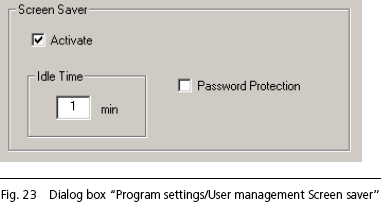
In addition, a screen saver with a freely adjustable interval can be
activated. The screen saver appears if the IOLMaster has been inactive
for longer than the set interval. This prevents unauthorized access to
protected patient data.
 |
NOTE:
The Password protection
option offers added protection. If
this is activated, you will only be
able to work with the IOLMaster
and its database after logging on
again with the password. |
- User Manager: Click on the User Manager button.
The dialog box on the left-hand side under the User Management in
the User Manager permits further users to be registered (with the New
button), their password to be specified (Password) or users to
be deleted (Delete).
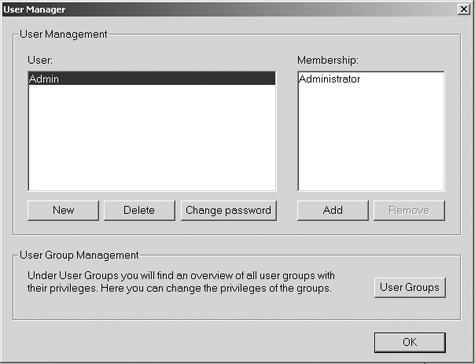
Program settings/User administration User Manager textbox
Each user may be a member of one or more user groups. For this
purpose, highlight the respective user. The user groups to which this
user belongs are shown in the right-hand window Membership.
The user can be assigned to one of the following user groups by clicking
on ADD.
- The Administrator has unrestricted access rights to User
Management, the User Database and the Setup
menu.
- The Surgeon only has an access right to the respective tab in
the
User Database. This tab is created automatically when the user
account is established in the User Management.
- The Assistant has no right of access to the User Database.
All user groups may enter/rename patient data and perform
measurements / calculate IOL's. Users who are not members of any of the above
user groups may work on the IOLMaster in the usual way, but they may not
change any of the system settings. To remove a user from a user group,
highlight the name and click on REMOVE.
|
NOTE: The rights of the Surgeon and Assistant user
groups in the User Group Administration may be extended to include access
to the IOLMaster Setup menu and the deletion of patient data. |
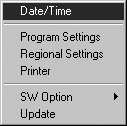
- Regional settings
Opens the Windows routine for regional settings.
- Printer
Open Windows printer folder. This function is only needed for:
- Showing the printer queue.
- Displaying the properties of the installed printer. Here you will find
advice on operating and maintaining the printer.
- Removing a printer that is no longer required.
- SW option
Installing or de-installing a software version.
- Update
To install a new software version from a CD:
- Insert an update CD into the drive.
- Click on Update to start the software update installation routine.
- Follow the instructions on the screen to the restart prompt - see IOLMaster Software Update.
- Remove update CD from the drive. If the IOLMaster reappears in
New Patient mode after restarting, the installation of the
software update has been completed.
- Service — Password-protected for servicing purposes.
 |
Unauthorized persons may under no circumstances use the service
password. The safety warranty for the medical device will otherwise
become invalid! |
|




 IOLMaster Checklist (pdf)