|
Zeiss IOLMaster Customer Service: 1-877-486-7473 ext.
4030
IOLMaster — New
Patient.
The Patient Manager manages both the admission of new
patients and all existing patient data. Below are instructions
for adding a NEW patient. For working with existing patients, see Managing
Existing Patients.
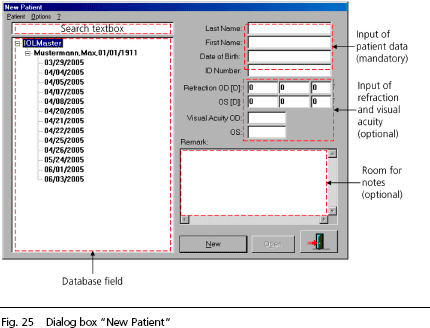
To admit a new patient, click on the <N> button
or the Patient Manager icon (shown above) and enter the new patient
data:
 |
|
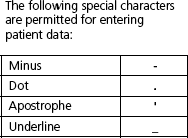
The personal data of patients not listed yet in the database
(New Patient) must be entered via the keyboard; no special characters
other than "-", ".", "’" and "_" (as
show to the left) are
permissible!
|
|
To move the text cursor to the next dialog box press the TAB or Enter key
or click the mouse.
 |
Depending on the Program Settings,
the entry of either the last and first name (case-sensitive) and date
of birth or an ID Number is mandatory.
The date of birth will be accepted depending on the Windows
setting; the year may also be entered as a four-digit number (yyyy) -
mandatory for patients over hundred years old!
|
|
NOTE: It is recommended that the patient's refraction data, if known, be
entered in the respective boxes. Visual acuity data can only be
entered in the data format set in Program Settings. |
Up to 255 characters may be entered in the Remark field (comments,
diagnoses, etc.).
  |
Refer to Patient Manager for
working with the database field.
In Patient Manager you can set the number
of days after which a data record is automatically deleted (5 to 365
days). |
- To close, after entering the date of birth click on the NEW button or
press the ENTER key. This will automatically activate the Overview [OVW] mode. The
fixation light and light spots will be switched on. The patient will see
a yellow fixation light in the center and 6 light spots (reflex points
in the patient's pupil) will appear in the video image.
- Open the New Patient dialog
box in the measurement mode.
- Press the EXIT icon in Patient Manager to quit the program and
Windows.
|
|


 |
Adjust IOLMaster
to Patient
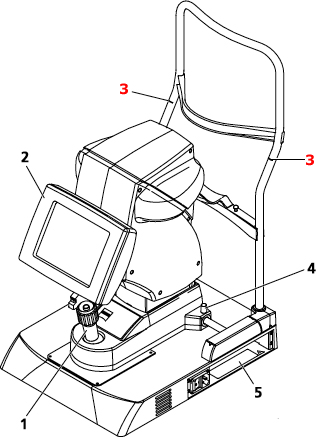
Fig. 26a
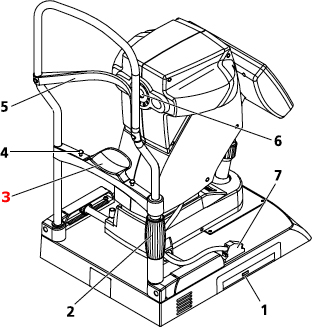
Fig. 26b
The two red ring marks (3, Fig. 26a) on the side
rails of the headrest are for rough vertical adjustment of the chin rest
(3, Fig. 26b). The patient's
eyes should be level with these marks.
In Overview mode, align the IOLMaster to the patient's eye using
the joystick (1, Fig. 26a). Turn the control knob for vertical
adjustment. Tell the patient to look steadily at the fixation point in
the center.
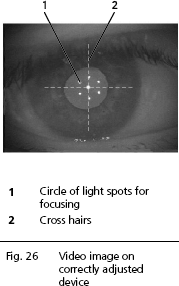
Adjust the IOLMaster-to-patient distance until the 6 light spots (1,
Fig. 26) appear focused. If possible, the 6 light spots should be centered
on the cross hairs and the edge of the pupil/iris structure should appear
in focus.
|
|
 |
The position of the IOLMaster in relation to the patient's eye, thus found,
serves as a starting point for fine adjustments to be made in the
respective measurement mode.
Measure
Other Eye
The system automatically
registers which eye is being measured (OD or OS). All past readings of this
patient are still stored and may be retrieved as necessary.
Measurements of the other eye must be performed analogously to the
previous eye.
|
After each change of side, the overview mode is automatically
activated for coarse alignment. |
Enter Next Patient
If you have completed measurements on one patient and wish to
continue with another patient, click on the Patient Manager icon
or the N button (pictured above).
The readings of the previous patient to the left and/or right will be
stored and removed from the display. The Patient Manager appears and
new patient data can be entered.
|
NOTE: Data is available in the internal database for the period preset in
the Database box under Program Settings. |
After entering new patient data and confirming with <Enter> or New,
the IOLMaster switches to Overview (OVW) mode
|
The above order of measurements is only an example.
You may also run the above-described measurements in a different order.
The only requirement is that the keratometer measurement
precedes the anterior chamber depth measurement.
|
For working with existing patients, see Managing
Existing Patients.
|




 IOLMaster Checklist (pdf)