|
IOLMaster — IOL Database
I key, or the button pictured above, activates
the IOL Calculation mode.
Establish Intraocular
Lens Database
Once all measurements have been taken (depending on the chosen IOL
power calculation formula), options may be generated for a particular intraocular
lens to be implanted. Before the system can calculate IOL power calculation
options, the available lens types must be entered into the database.
-
In Options - User Database, open the Password Input
- Select the appropriate name and enter password as necessary. The
database window for entering specific lens data will open (for
registering a new user see User Database).
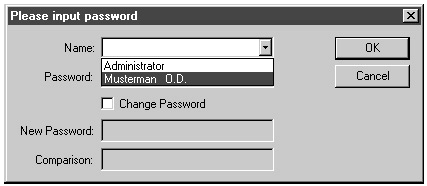
- Before the system calculates IOL options, you must enter the desired
lens types into the database.
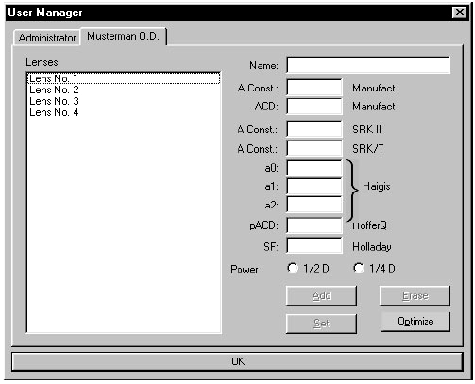
-
In the lines "Name", "A Const. Manufact" and "ACD
Manufact",
enter the respective data of the manufacturer, from catalog or package
inserts.
 |
WARNING: If the ACD constant is not available, you may click
the Add button
after entering the A constant.
All parameters will automatically be calculated
from the A constant according to standard formula.
The
manufacturer's A-constants may
result in refractive errors.
|
- Lens Constants are personally calculated constants for the various
IOL power calculation formulas, optimized for optical biometry. They must be
entered/changed in the "A Const. SRKII, A Const. SRK/T, a0, a1, a2. pACD
HofferQ, and SF Holladay boxes.
 |
NOTE: Only lens constants optimized for
optical biometry will produce accurate results. Calculating the
strength of the intraocular lens to be implanted with the IOL Master
does not work using the manufacturer's IOL constants, only with those
specifically optimized for optical biometry (see Optimization
of IOL Constants). |
- If you use lenses graded in 0.25 D intervals (in future), activate the
Power 0.25/4 D radio button.
- To add data to the database, click the ADD button
- To delete the data of the lens type selected in the Lenses field, click
the ERASE button.
- By clicking the SET button, existing lens data will be overwritten by
edited data.
- To enter the data of the next lens, overwrite the name of the lens.
Exit the User Manager by clicking on OK.
For further information:
|
