|
IOLMaster — General Operation.
IOLMaster Operating
System
For safety reasons, the IOLMaster operating system is not accessible
the user and works in the background.
 |
IMPORTANT:
All attempts to modify the IOLMaster operating system
are strictly prohibited. In particular,
deactivation of the Windows firewall is not permitted. |
Windows operating conventions apply to the user interface
of the IOLMaster software. This relates to utilizing a
mouse/touch-pad, the use of icons, dialog boxes and
menus, confirmation by double-click, etc.
 |
Note:
The IOLMaster software does not support all Windows key shortcuts. The special
Windows keys that exist on some keyboards are ineffective. |
The IOLMaster software uses only a few forced processes. The user may switch
freely between the individual modes. For a logical workflow, the user is
advised to observe the sequence of measurements described
in the IOL Master Instruction
Manual V.5.
In rare cases, Windows error messages may appear on the LC display. This might
be the case, for instance, if the program run is affected (mostly by external
disturbances).
Multiple safety mechanisms in the instrument’s hardware and software
ensure that there is no risk of injury.
|
IMPORTANT: If warning messages appear frequently,
the IOLMaster should be taken out of service. For repair service, call:
Carl
Zeiss Meditec Service
877-486-7473.
The IOLMaster does not support the submission
of generated error reports sent to Microsoft.
|
Switching on the IOLMaster
- Turn the IOLMaster on at the power switch. The IOLMaster will
start automatically and perform a self-test, after which the Patient
Manager screen will appear.
- After switching on the IOLMaster will prompt a daily calibration check
prior to patient measurements.
- After confirming with OK, check the measurement functions.
The IOLMaster may be operated by:
- Icons (by cursor and/or touch-pad)
- Keyboard or
- Menus
Measurements are initiated by pressing the button on the joystick.
Touch-pad and
Keyboard


In addition to program control via touch-pad, you may also activate
certain menus by pressing individual keys or key combinations. See:
Menu
Overview
Shortcut
Keys
Screen Layout
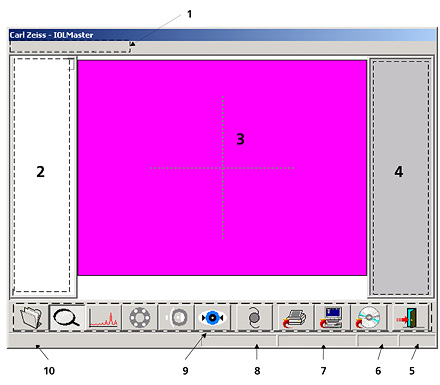
-
Menu bar
-
Display field for measurements of right eye
-
Display field for video images
-
Display field for measurements of left eye
-
Eye
-
Mode (additionally in ALM mode: number of measurements)
-
Last name
-
First name
-
Icons
-
System messages/progress bar
 |
WARNING:
To avoid damaging the IOLMaster, if connecting external devices,
e.g. PC, monitor or an external
network, the operator must ensure
that the safety requirements of IEC
60601-1-1 (medical electrical
systems) are observed. |
|
