IOLMaster — Import Data.
Import Data from Storage
The Import function permits IOL data (name and respective IOL
constants) to be transferred back to the IOLMaster from data
saved to CD-RW or USB flash drive (Version 1.1. or later). Imported
data may be assigned to one or several surgeons.
Prior to import, download the available IOL data from the Internet.
Copy the IOL data to a storage medium.
 |
NOTE:
Download IOL data using a PC connected to the Internet and a
CD-(RW-) recorder or USB storage medium. |
 |
IMPORTANT: Do not use a network-connected
IOLMaster for the download. |
- Log into Carl Zeiss Service.
- Select IOLMaster -> Download: Optimized
IOL constants.
- Follow the prompts appearing on the screen.
- Save the file (do NOT select "Open") on the desired storage medium.
- Do NOT extract the ZIP file.

|
|
Import the IOL data from the storage medium
to the IOLMaster
- In the User Database activate Administrator.
- Click on the IMPORT button.
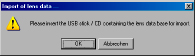
- Insert the CD-RW or USB flash drive with the database to be
imported and confirm with OK.
|
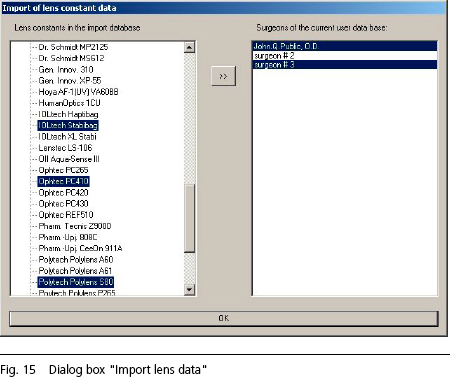
- Choose the desired lenses; select several lenses with <CTRL> + cursor
+ click (selected lenses appear highlighted in blue).
- Choose the surgeon (one or more) with <CTRL>
+ cursor + click
(selected surgeons appear highlighted in blue); if not already existent,
the desired surgeons must be created beforehand.
- Accept with >>. A progress bar informs you of the status of the
copying process. The selected lens data will be added to the selected
surgeons.
- Close the dialog box with EXIT.
|
