IOLMaster — Servicing and Maintenance.
Care of the IOLMaster
  |
WARNING:
Before cleaning the IOLMaster, switch it off and disconnect the power
cable.
|
 |
IMPORTANT: Never allow
moisture to penetrate the interior of IOLMaster or the keyboard, as this
may cause damage. |
- All parts of the casing may be wiped off with a moist, but not dripping-wet,
cloth. Wipe off any marks or stains with distilled water to which a drop
of household washing up liquid has been added.
- Do not use aggressive or abrasive cleaning agents.
- Use cleaning cloths designed for computers and monitors when
wiping off the display and monitor.
- Contaminated parts with which the patient has come into contact
during the examination (chin rest, forehead rest) should be cleaned
with a disinfectant approved for the purpose. These parts are
resistant to wiping off with low toxic agents (e.g. suds, quaternary
ammonium compounds) and intermediate agents (e.g. alcohol, Javel
water, iodine; classification pursuant to: Disinfectants and activity
spectrum according to the Center for Disease Control and
Prevention, Atlanta, USA).
- Remove dust from optical surfaces by means of a fine brush.
- If necessary, carefully clean these surfaces with a water-free
ether/spirit mixture (9:1) applied with a cotton swab. The swab or
optical cleaning medium should be applied with circular movements
from the center to the edge. Ensure that the regulations for
inflammable liquids are observed.
- When not in use, the IOLMaster should be covered with the dust cover
provided to protect it from dust.
- The packaging material should be kept for future relocation or repair
of the IOLMaster. On request, it may also be returned to the supplier.
Restart After Failure
|
IMPORTANT:
Pulling the main plug or cutting off the power while the IOLMaster is
running may cause a loss of data and/or defects in the IOLMaster's control
software. However, no danger to the patient or user ensues as a result. |
If the system fails during operation, take the following steps to restart:
-
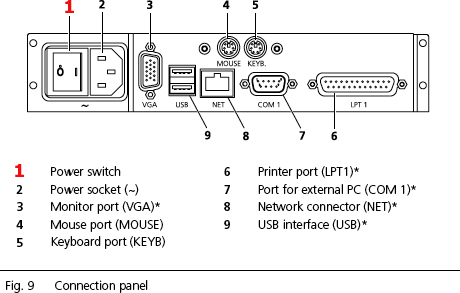
Switch on the power supply at the power switch (1, Fig. 9).
An automatic test program will run before Windows is launched.
Once this has been successfully completed, Windows and the IOLMaster
program will be restarted and work can be resumed.
Test Eye— Verify Measurement Functions
|
The "test eyes" supplied as accessories to the IOLMaster (1,
Fig. 77) are for verifying that the IOLMaster is operational and
properly calibrated.
Measurements can be
performed on these test eyes the same as with a human eye. Last, first name
and date of birth are essential here as well! The supplied scale is to be
used for checking the WTW value (optional).
|
WARNING:
The calibration must be checked every day before
starting measurements on a patient. The measured values can be printed out
and filed for documentation purposes.
If the values obtained from the
test eye are not within the given tolerances, no patient measurements
may be taken!
The IOLMaster must be shut down immediately and secured
against inadvertent use.
Then notify Carl
Zeiss Service.
|
- Insert the asymmetrical holder (5) into the holes adjacent to
the chin rest - the holding pins for the paper pads (4), may
need to be removed beforehand.
|
|
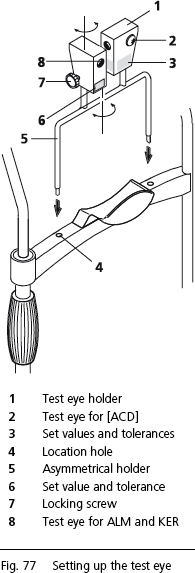 |
The test eye (1) is mounted on a mandrel which allows it to
rotate and secured by a locking screw (7). The respective set
value and tolerance (3 and 6) for checking the calibration
status are marked on the test eye (1).
In the delivery condition, the "test eye" patient named !CHECK DEVICE!,
with a birth date of 02.05.1956, has been entered. Because of the exclamation
mark in front of the name, this "patient" will always be at the top
of the patient tree in the Patient Manager and can thus be easily found
every day for test purposes.
-
Highlight the patient !CHECK DEVICE! and click on NEW.
- Select Options — Test Eye.
Axial Length Measurement and Keratometer
The test eye (8, Fig. 77), marked with AL, R, the respective set values
and tolerances (6, Fig. 77) is used for checking the axial length
measurement (AL) and keratometer (R).
The measurements should be taken in the same way as for a human
eye.
If the readings (in the case of the keratometer, the radius) are within the
tolerances stated on the holder (6, Fig. 77), the IOLMaster is properly
calibrated.
Anterior Chamber Depth
The (larger) test eye (2, Fig. 77) on the side of the test eye holder
(1, Fig.
77) (marked with the ACD, set value and tolerance) is for checking the
anterior chamber depth measuring device. Before starting
measurements, the surface structure simulates the cornea and must
therefore be clean and grease-free (wipe off with a dry cloth!).
- The measurements should be taken in the same way as for a human
eye. On the video screen verify that the adjustment criteria for an
optimum optical section are correct, as for measuring the ACD on
the human eye.
- Here again, if the measured values lie within the given tolerance, the
anterior chamber depth measurement is functioning correctly.
IMPORTANT:
Although the side (right or left on the simulated eye) is immaterial for
checking the axial length measurement and keratometer (because the
optical path for the measurements is rotationally symmetric), when
checking the anterior chamber depth measurement it is recommended
that the asymmetrical holder (5, Fig. 77) be reversed and the check
performed on the other side.
When comparing right and left, however,
care must be taken to ensure that in both cases the test eye (2,
Fig. 77) stands exactly vertically in front of the IOLMaster.
 |
|
Note
The test eyes are ideal for practicing the operation
of the IOLMaster. |
The status of the Test Eye can be reset in the Options menu under
Test Eye. It is also reset each time a new
patient (<N> or "new patient" icon) is admitted.
|
WARNING:
If the test eye readings are not within the given
tolerances, the IOLMaster must be shut down. Then notify Carl
Zeiss Service. |
WTW Measurements
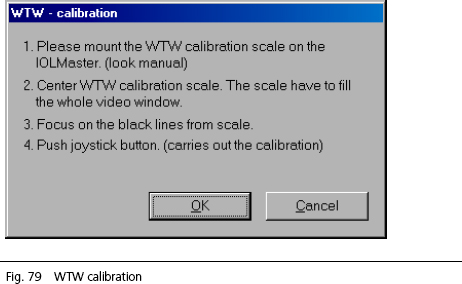
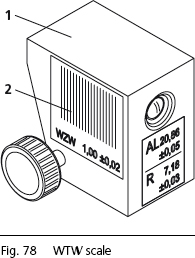
The WTW scale (an optional function) (2, Fig. 78) is
for verifying the WTW reading.
- Take a measurement using the test eye.
If the reading is within the tolerances, the WTW determination is
properly calibrated.
|
|
Note
The WTW scale must completely fill the video window. The scale
(black lines) must appear in focus. |
|
|
 |
Printer Troubleshooting
Use only printers recommended by Carl Zeiss Service.
The printer models listed on that website have been tested in conjunction
with the IOLMaster. Provided the instructions for setting up are
observed, the IOLMaster printer system will operate reliably.
Should printing problems occur, delete all printer drivers not used, as follows:
- Click on Printer from the Options — Setup pull-down
menu.
- Select the connected printer and designate it as the standard printer
(check the appropriate box in the File menu).
- Select the printers not connected (except New Printer) and press
the
<DEL> key. Follow the prompts appearing on the screen.
- Re-close the printer file once the unwanted printer drivers have been
removed.
If the printer problem persists, notify Carl Zeiss
Service:
877-486-7473
If you connect a printer yourself, it may be connected to either the USB
or LPT 1 parallel port. Please note that the printer must be compatible
with Windows® XP (driver).
Safety Checks
To ensure it remains in perfect operating condition, the IOLMaster should
undergo an annual safety check (visual inspection, protective conductor
resistance and discharge current measurement). The safety checks must
be carried out by an authorized specialist.
Local safety regulations must be observed.
|